Dear users, musicians, and composers,
The official store of Set, Rhythm, Instrument, Skin, Loop, … for ORG 24 and Music Studio is welcoming you to share or sell your products.
Before taking any action, please read the following:
• You will need a Stripe account. If you don’t connect your dashboard to Stripe, customers will not be able to purchase your products. Please check Stripe’s availability in your country, or simply share your products for free.
• Make sure your product is created by you or your team, and you have the legal right to share or sell it. You will be held responsible for any copyright-related issues.
• You may only share or sell files generated using our Music Studio, ORG 24, or Skin Editor software, such as Sets, Rhythms, Instruments, and Skins. Also, products that don’t meet our quality standards will not be approved.
• If you have any questions, suggestions, or issues, feel free to contact us:
• How to register as a Vendor?
• How do I withdraw my share of the sales of my files?
• How to add a product to my dashboard?
• How to register as a Vendor? ^
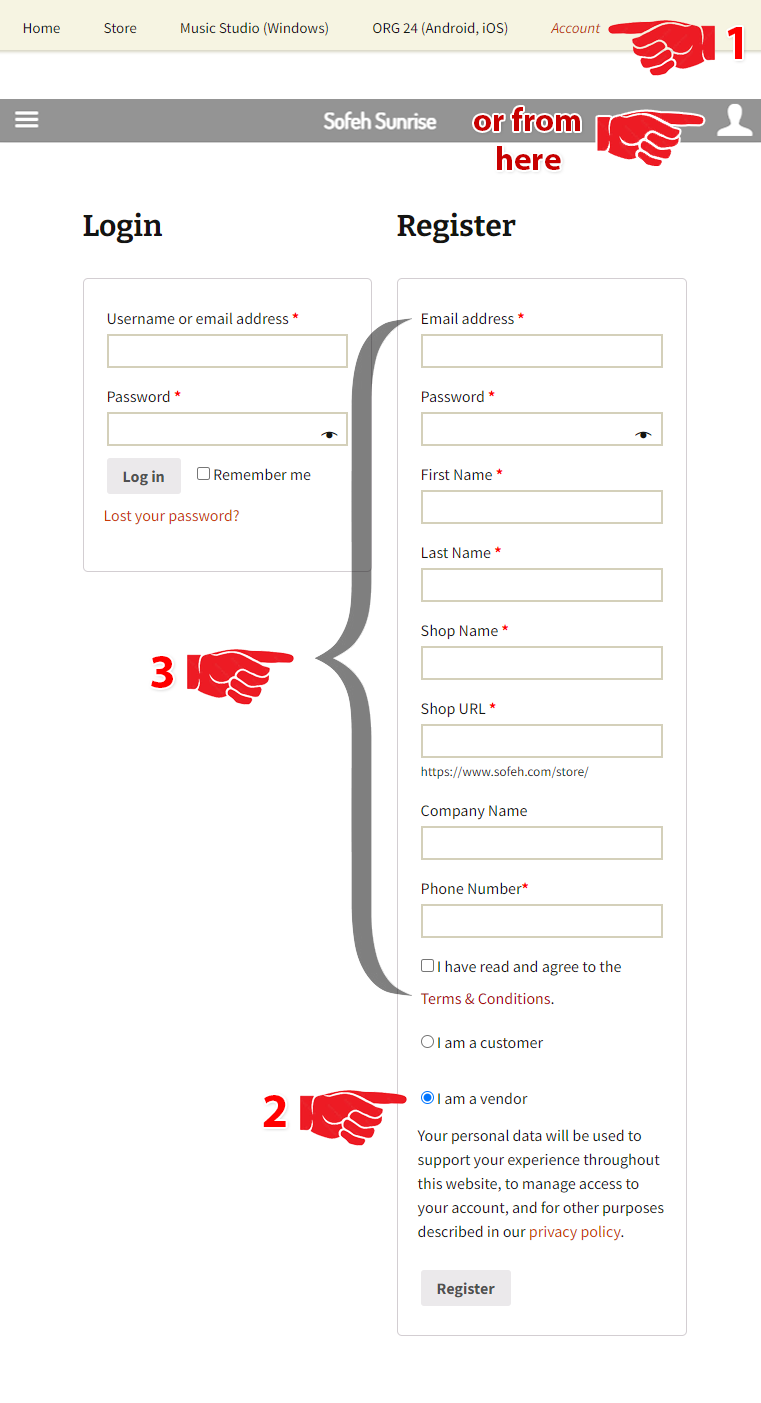
- Go to the Account page.
- Select “I am a vendor“. If you have already registered as a customer, click “Become a Vendor”.
- Fill in the information fields, then read the terms & conditions and fill in the check box. Then click the Register button.
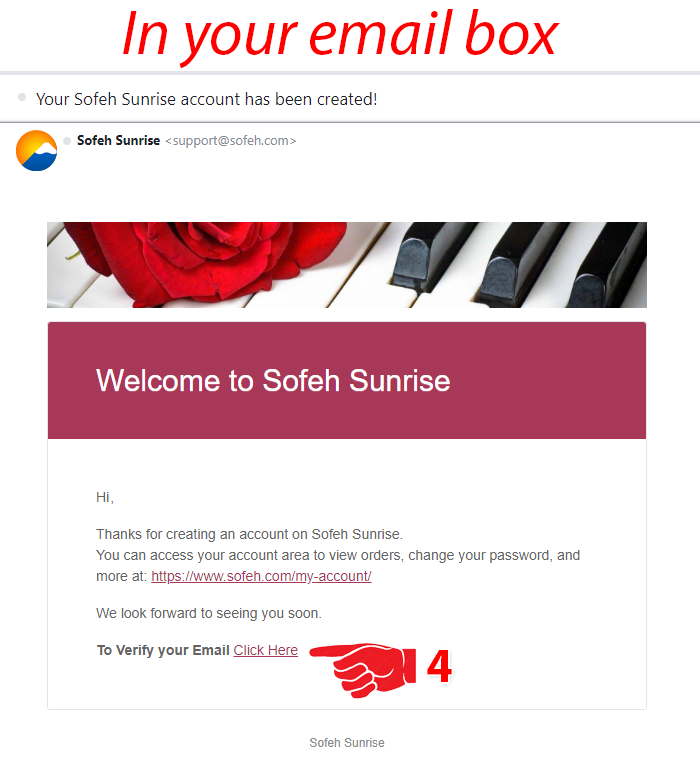
- Check your email inbox and verify your Email. You may need to check your spam folder, too.
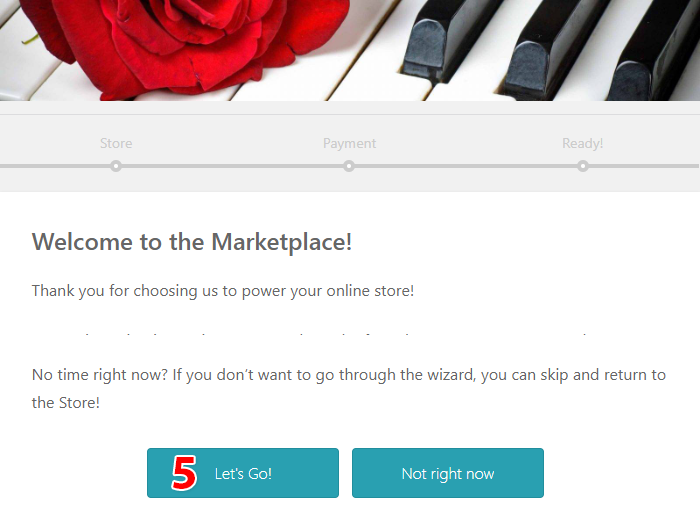
- Let’s Go!
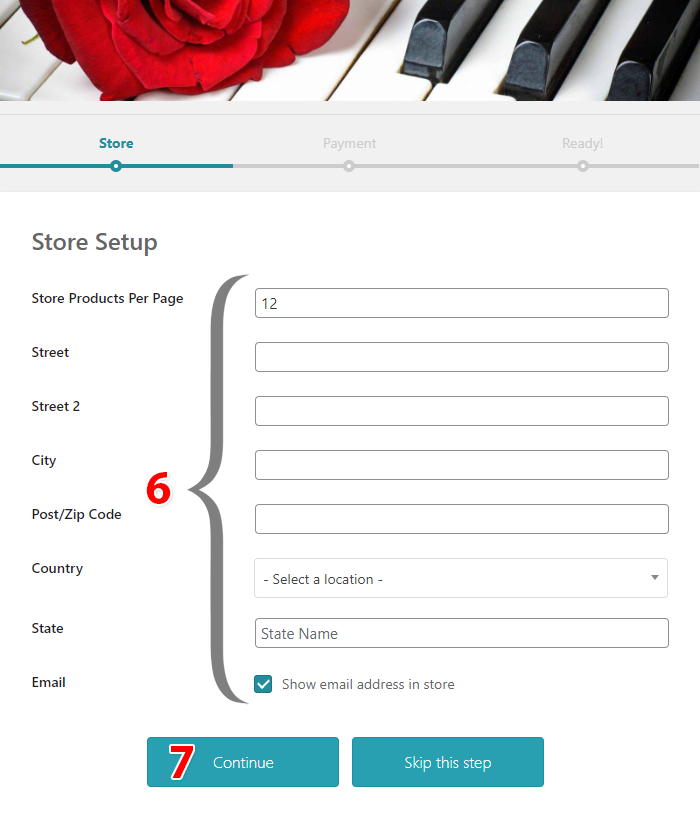
- Fill in the information fields.
- and continue.
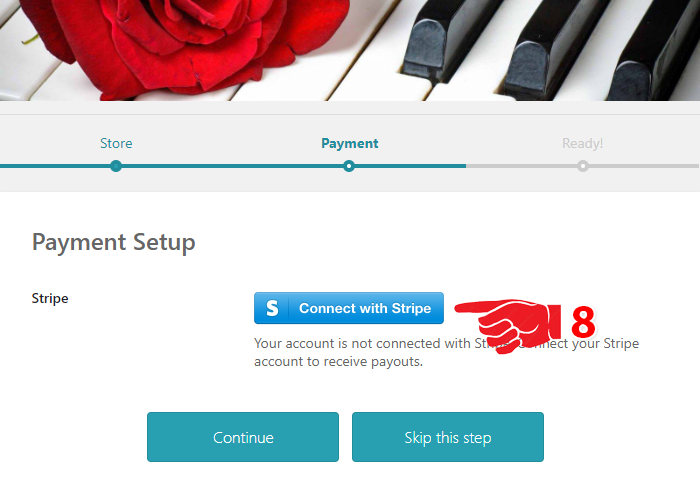
- If you want to sell your files and receive your percentage of the sales of your files, connect with Stripe.
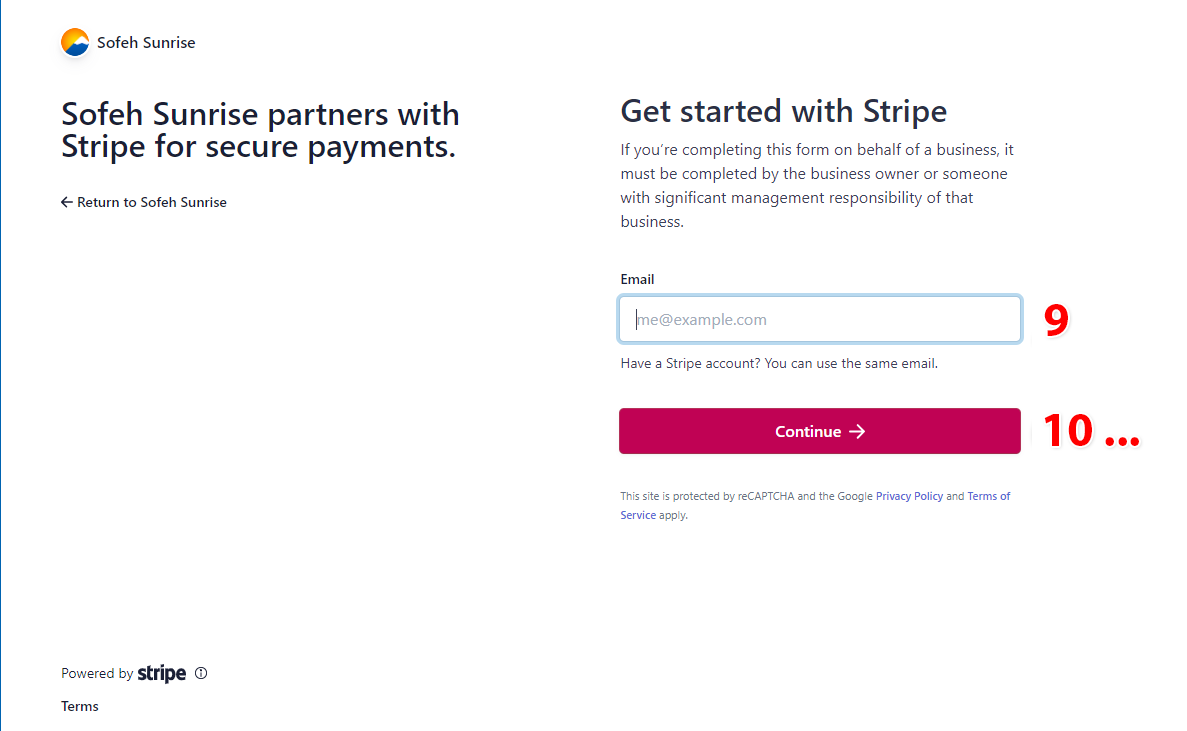
- Enter your email address.
- and continue. After completing the Stripe Connect setup, you can go to your dashboard and add your products.
• How do I withdraw my share of the sales of my files? ^
If you want to sell your products and have not completed the Stripe Connection in vendor registration, you need to do it from your vendor dashboard.
Note: If you don’t connect to Stripe, customers will not be able to buy your products.
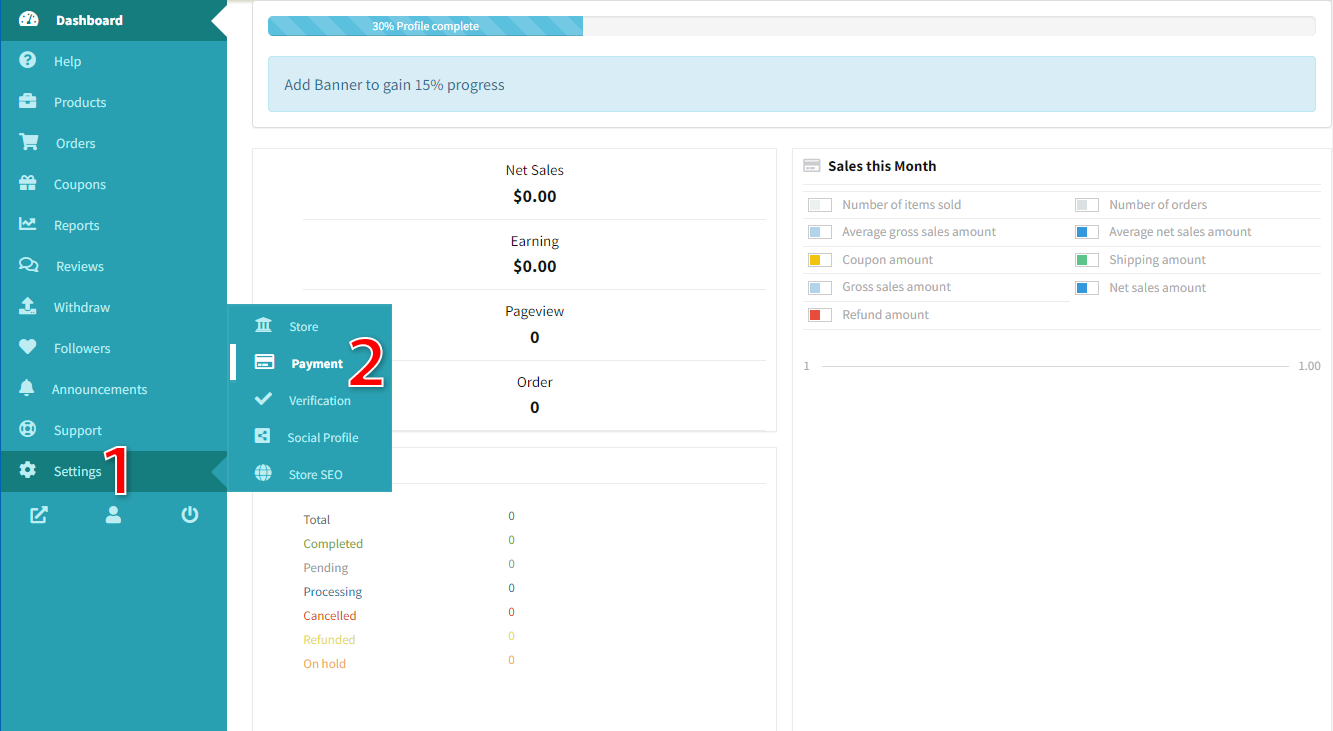
- Open your vendor dashboard and click Settings.
- and click Payment.
- in Add Payment Method click Direct to Stripe.
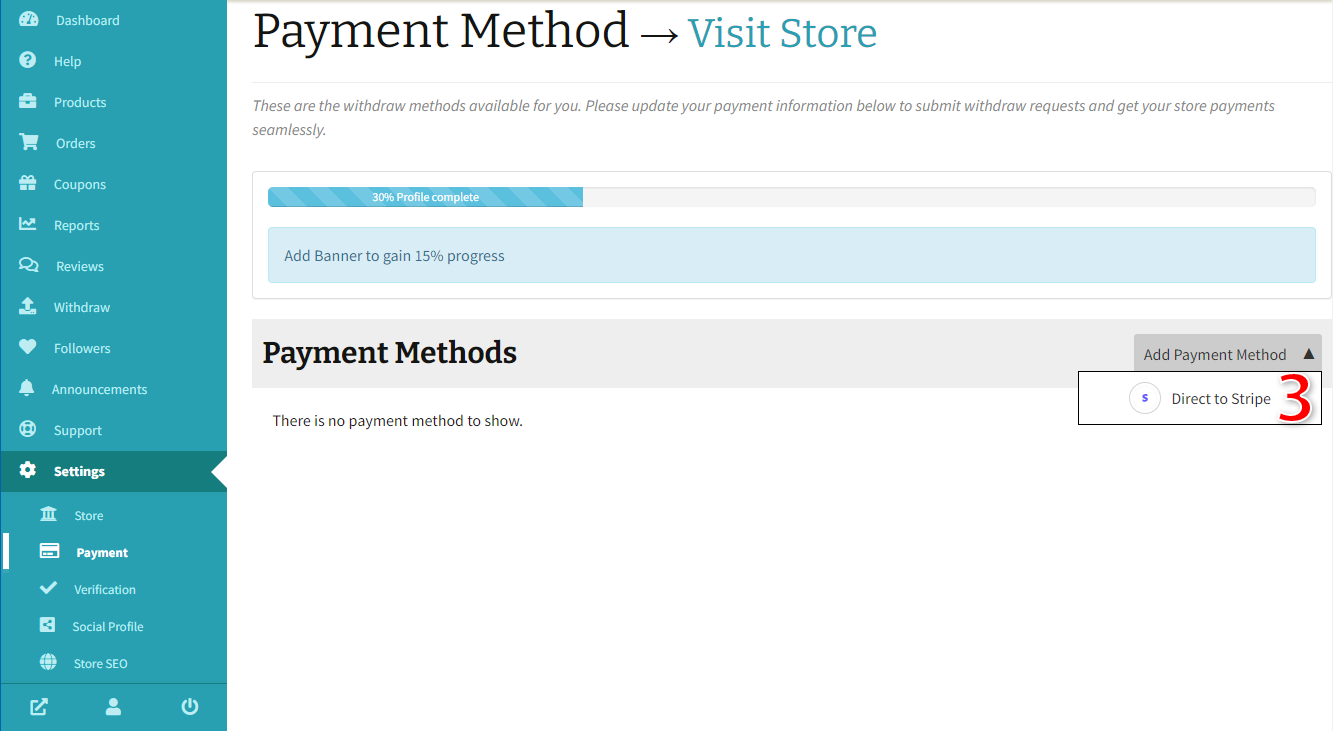
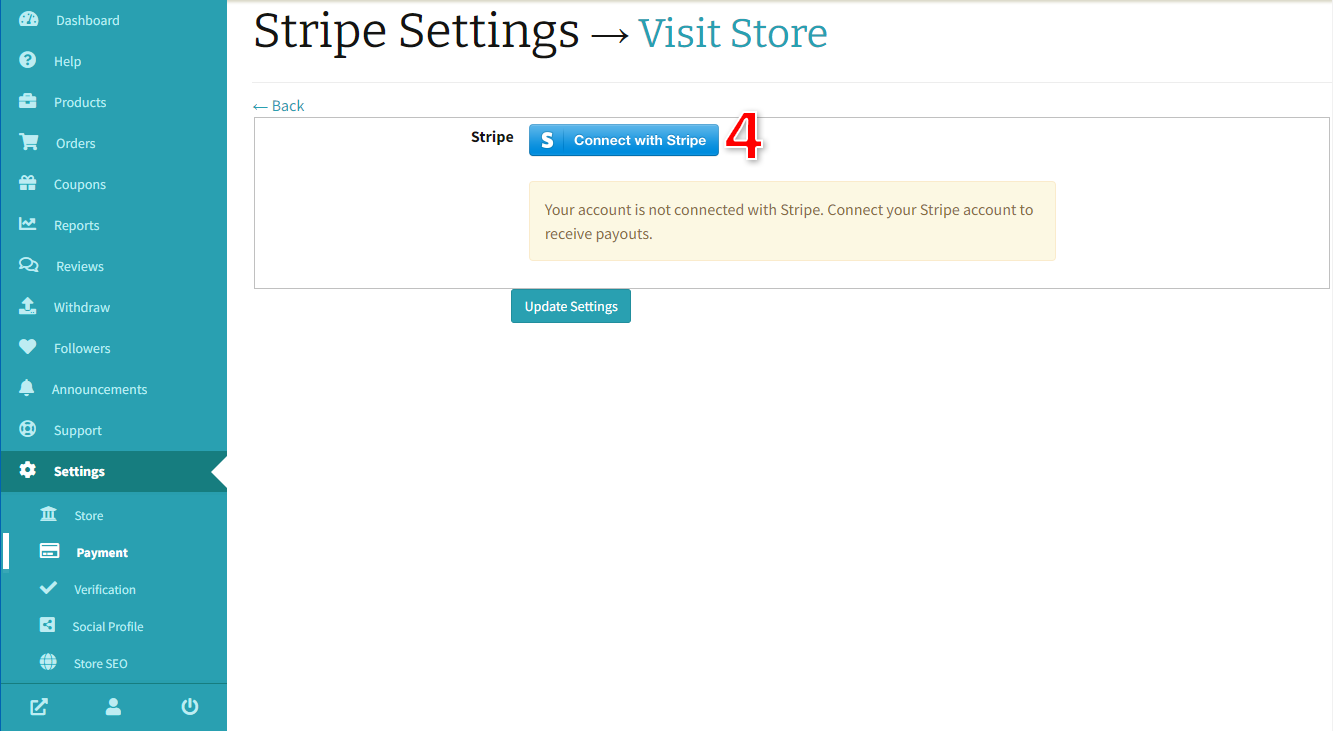
- Click Connect with Stripe.
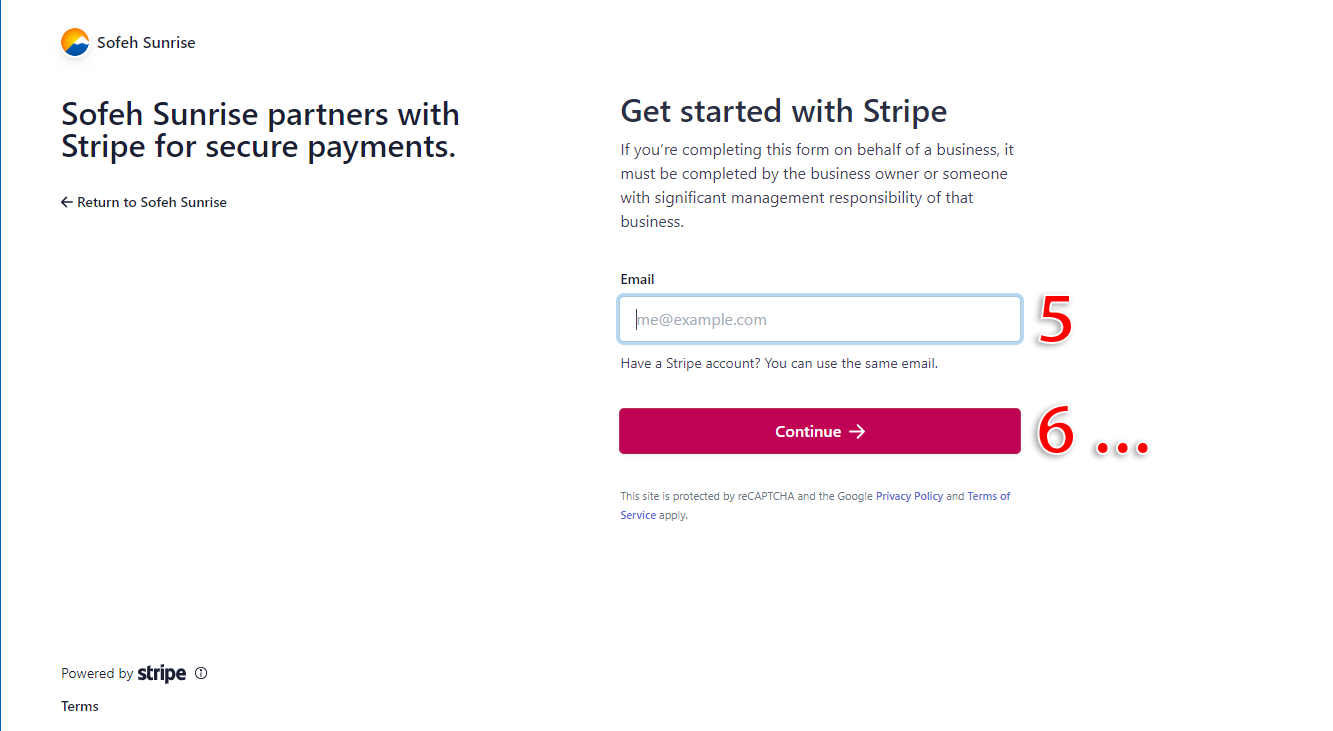
- Enter your email address.
- Continue and complete the Stripe Connect setup.
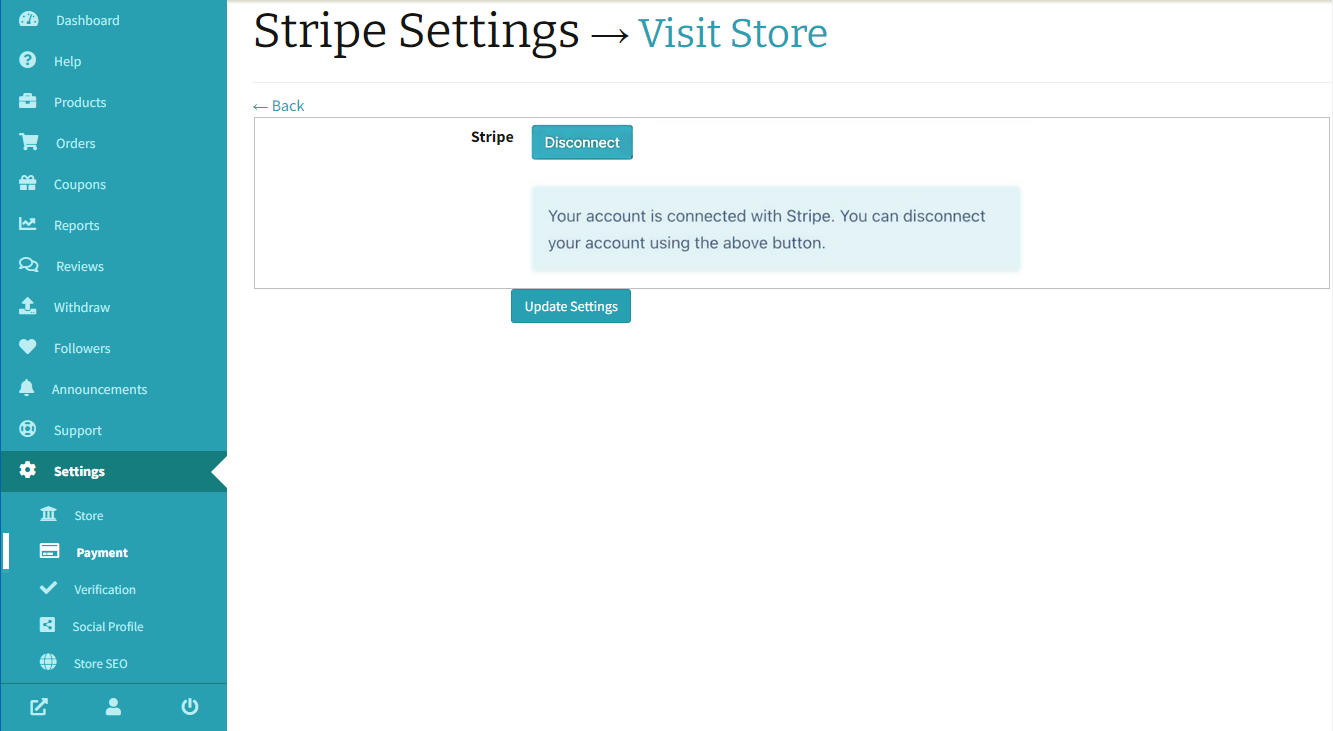
- Your dashboard will change like below after connecting to Stripe.
• How to add a product to my dashboard? ^
Note: Open your dashboard on a PC, or directly on the phone browser: www.sofeh.com/dashboard
Note: Make sure your products are created by you and you have the right to share or sell them.
Note: You can only share or sell the files usable in our Music Studio or ORG 24 software.
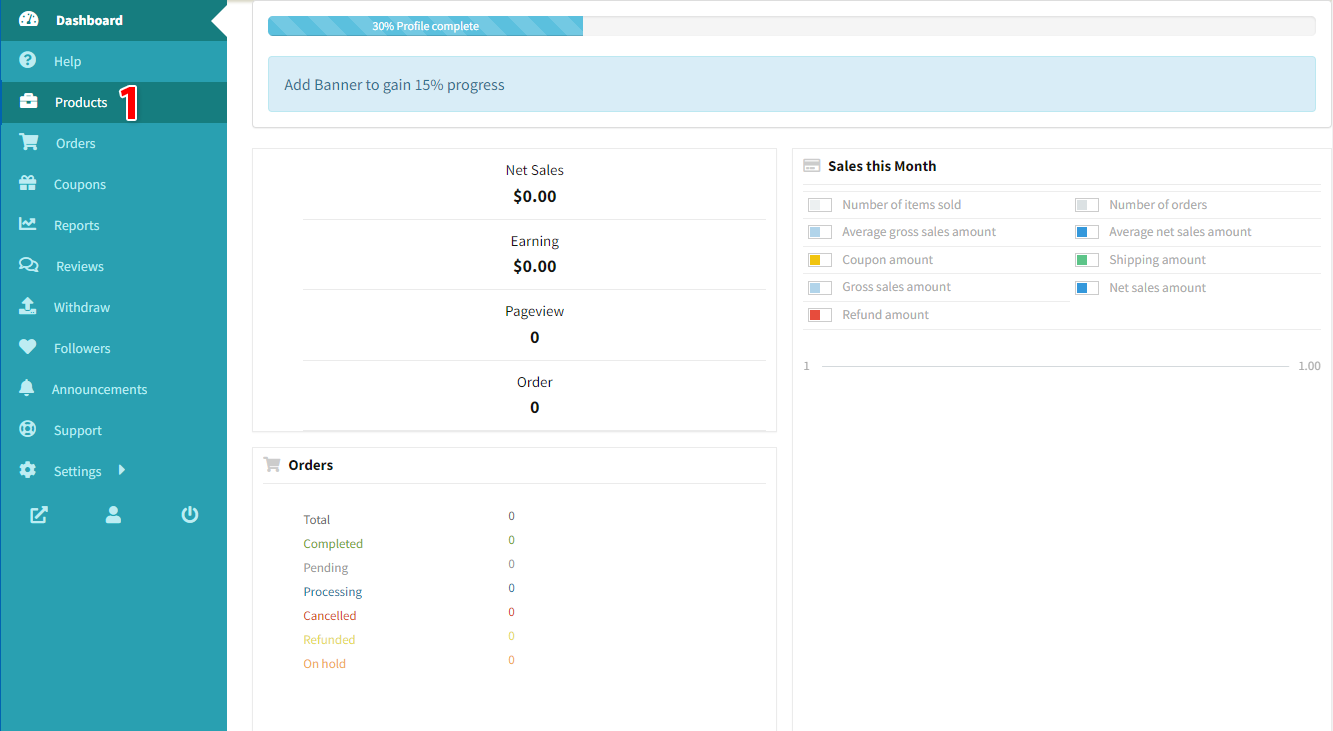
- Open your vendor dashboard, and click Products.
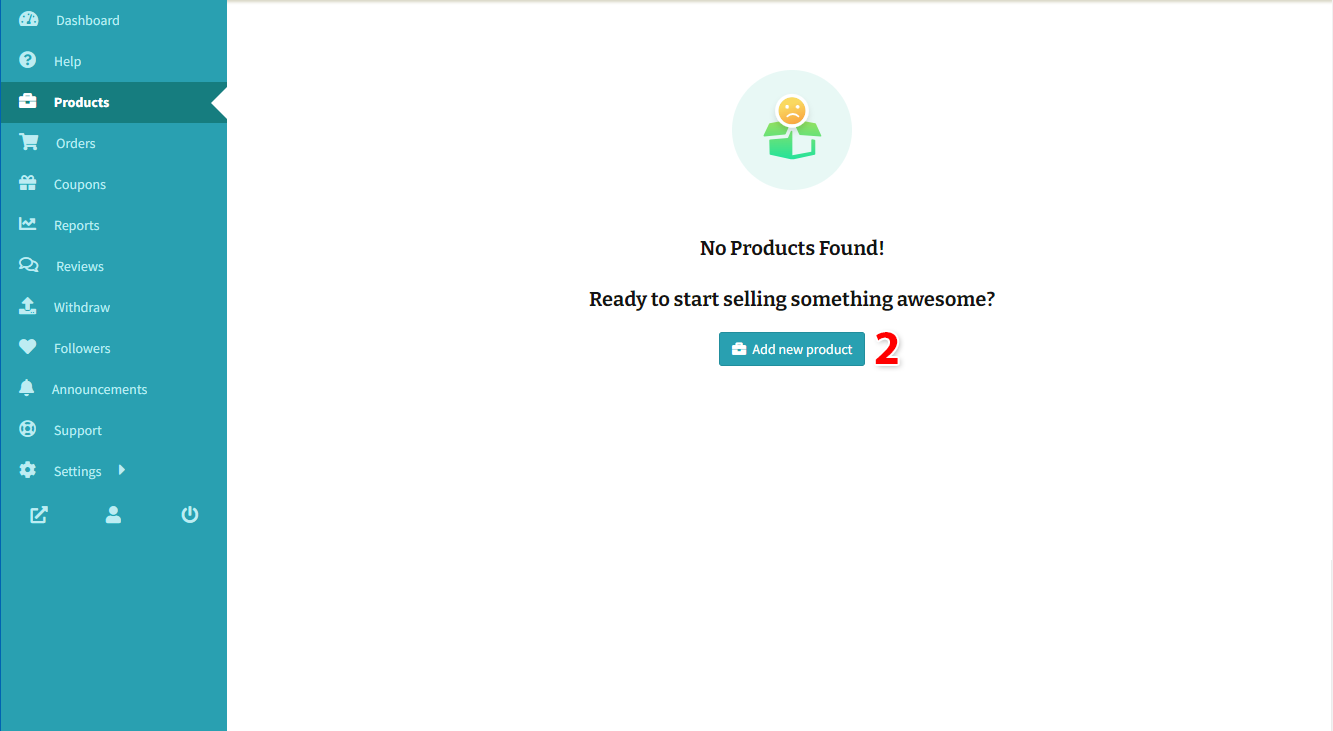
- Click the Add new product button.
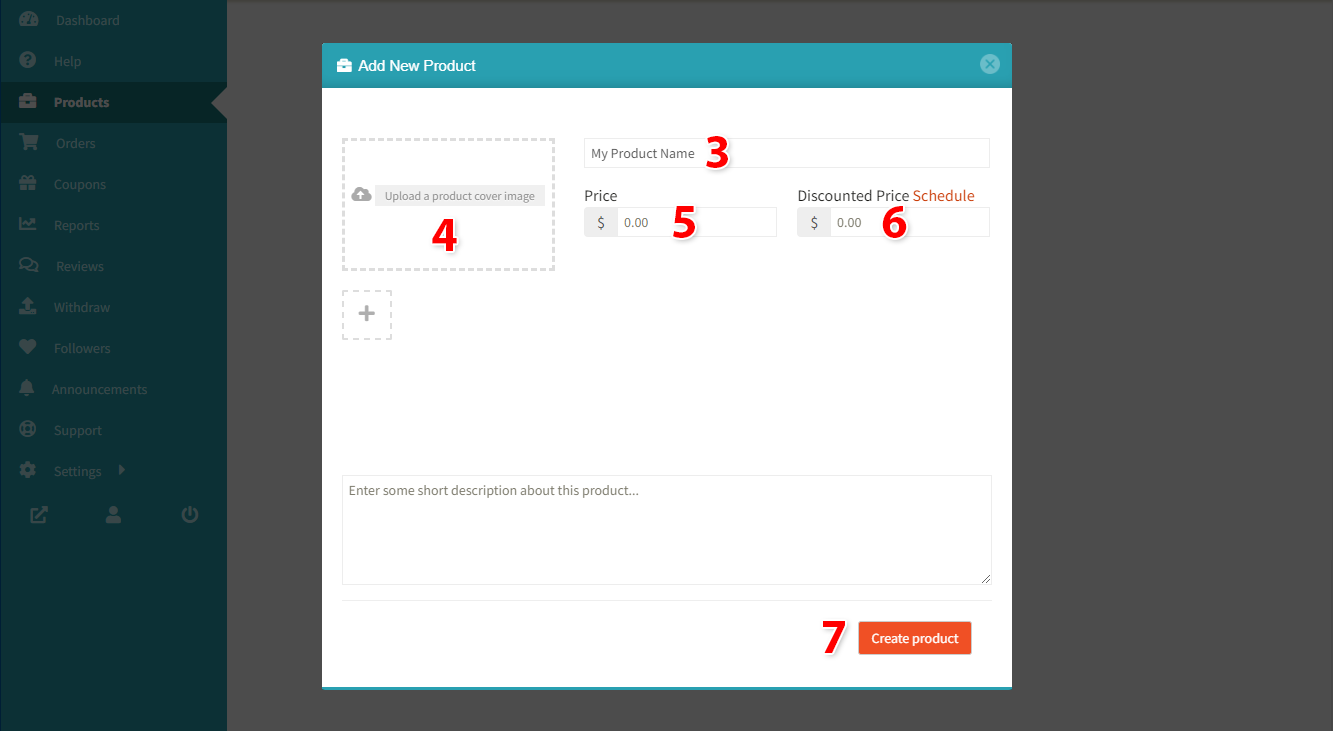
- Add the Product Name.
- Product Image(s).
- Price.
- Discounted Price and its Schedule (Optional).
- and click the Create product button.
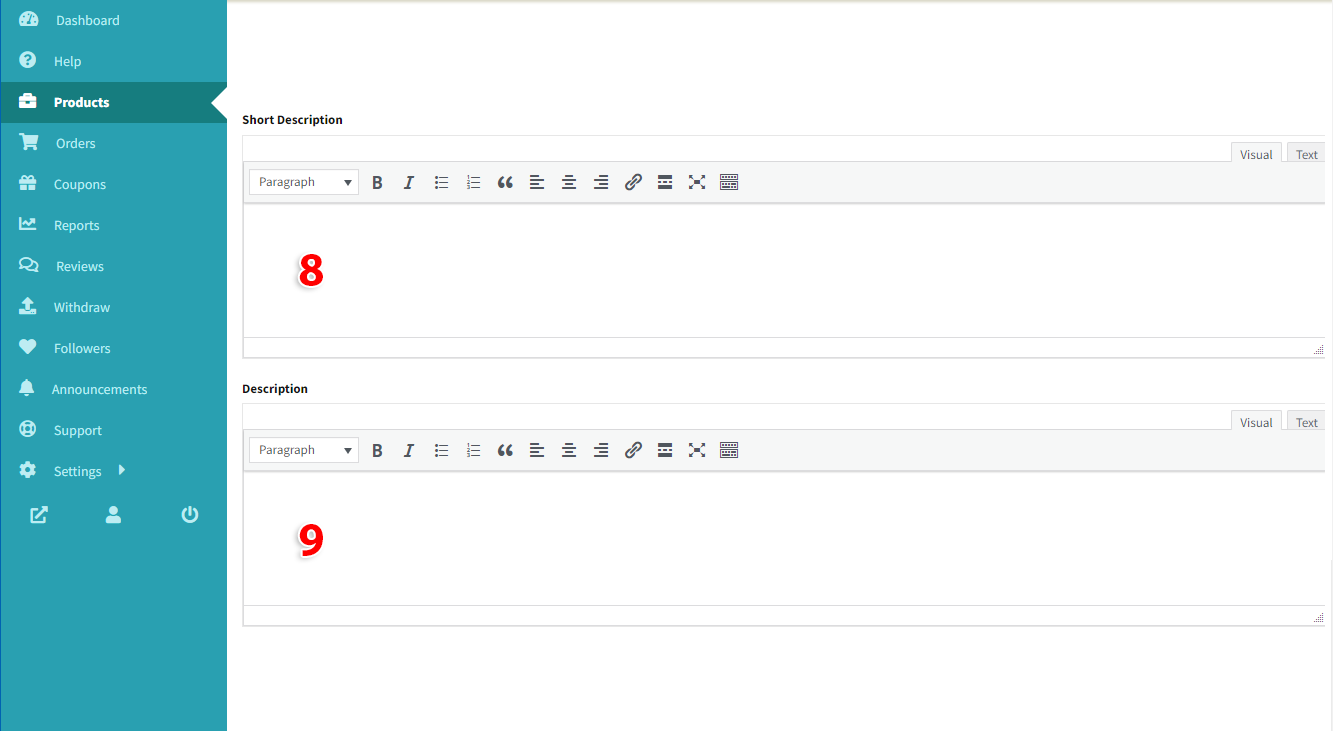
- Add a Short Description (Optional).
- Add the main Description.
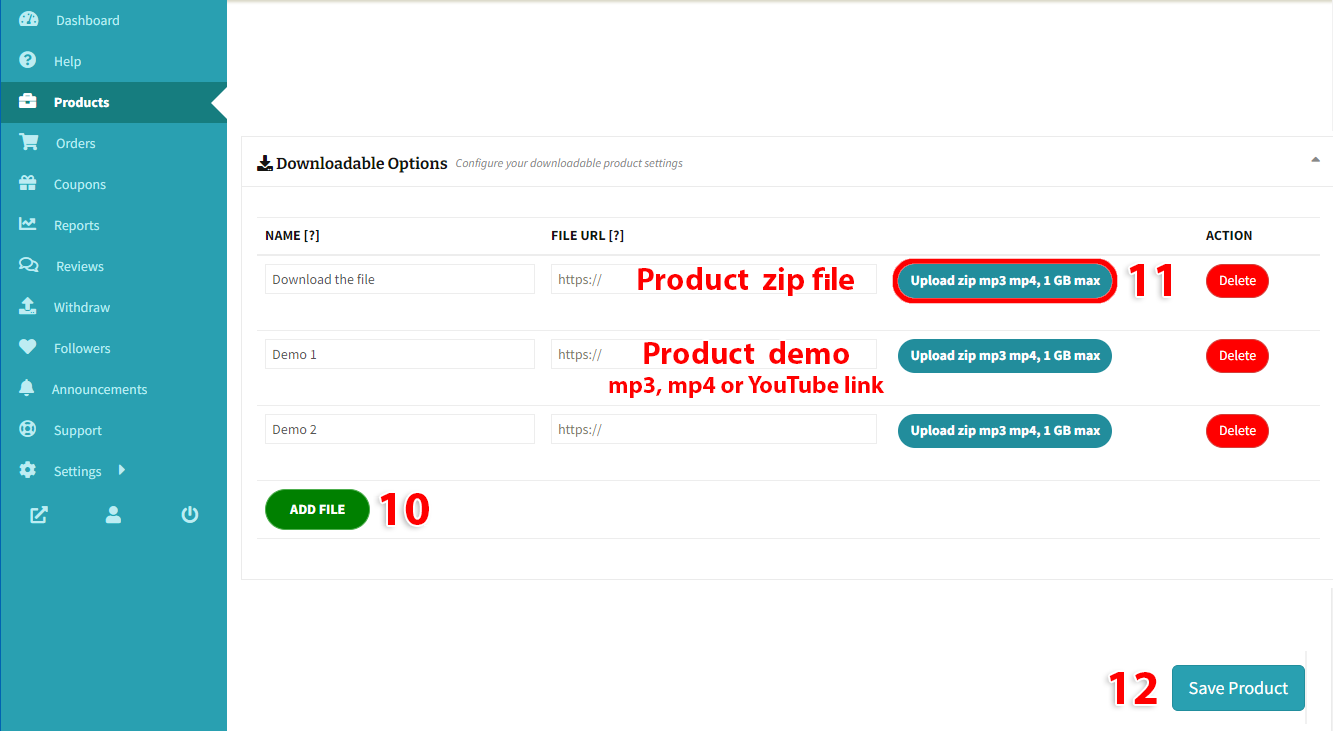
- Click the ADD FILE button and enter the Name of the file.
- Upload your product files and demos. Product files must be compressed in zip format and a maximum of 1 GB, Demo files must be in mp3 or mp4 formats, and you can also put the YouTube URL. Also, you can use any upload center or cloud drive to upload and just add a link.
- Click the Save Product button. Now, your product is in pending mode, and we must review and publish it. After creating or editing a product, it will happen.